
Studio
Visual tour
Studio is a local web app that reads and writes your schema artifact directly — nothing leaves your machine. Launch it from your project root and your browser opens a seven-view UI for enriching tables, defining concepts, configuring tenant isolation, and testing natural-language questions against the SQL they generate.
npx askdb studioStudio reads outputDir from askdb.config.ts. Pass --schema <path> to override for a single run. By default it serves on http://127.0.0.1:5556 — change that with the --port and --host flags, or set studio.listen.port and studio.listen.host in askdb.config.ts (a CLI flag overrides the config for that run).
The loop
Section titled “The loop”The core Studio workflow is enrich → ask → re-enrich: add descriptions, aliases, and example questions to a table, then switch to the Playground and ask a question to see the generated SQL. If the answer isn’t what you expected, go back, tighten the enrichment, and re-ask — all without leaving the browser tab. Repeating this loop is what makes generation reliable for the vocabulary your team actually uses.
Overview
Section titled “Overview”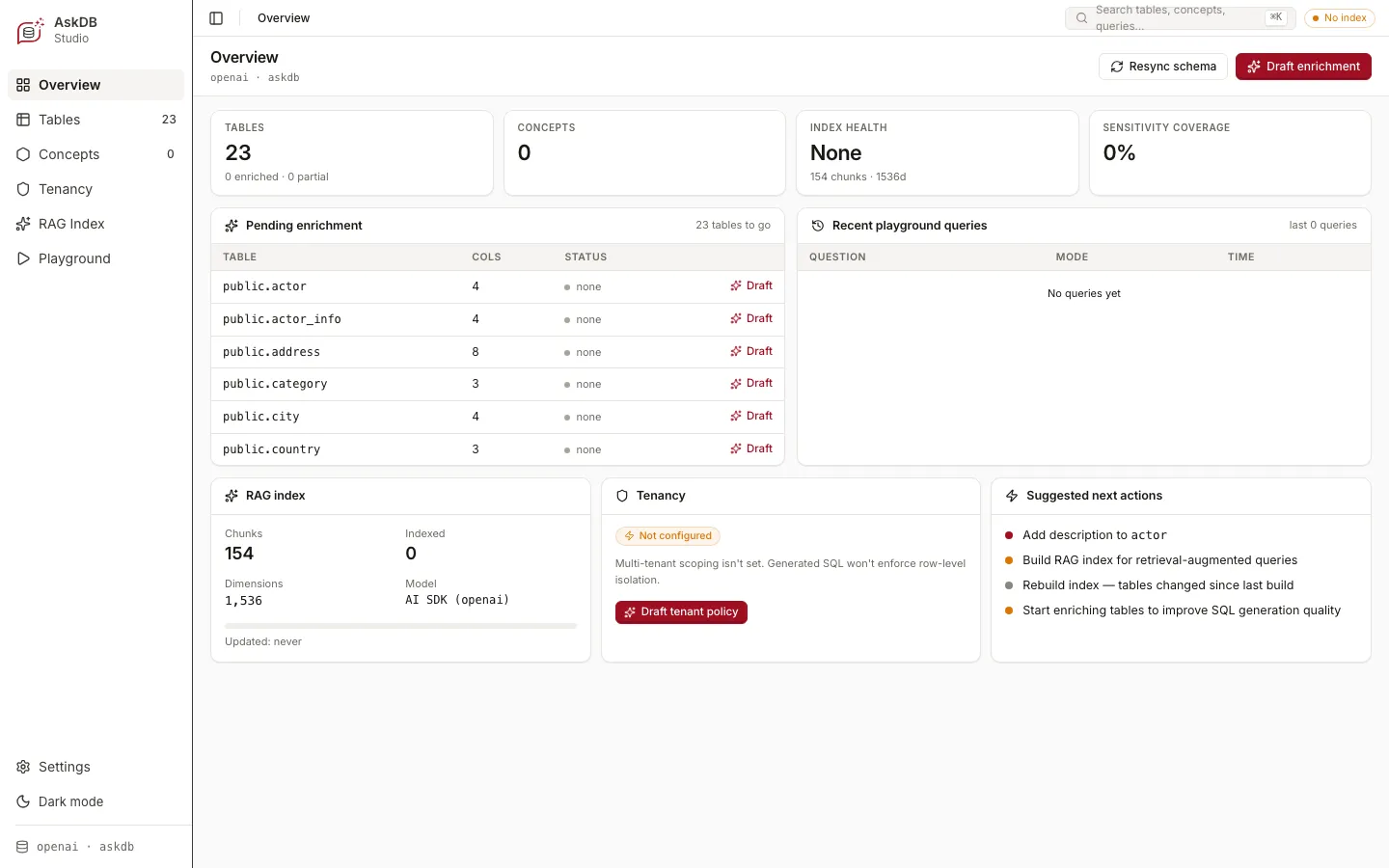
The Overview dashboard shows the health of your schema artifact at a glance: how many tables are enriched, how many are still at the default “none” state, RAG index status (chunk count and model), tenancy configuration, and a prioritised list of suggested next actions. Use it as your starting point to see where enrichment effort will have the most impact.
Tables and enrichment
Section titled “Tables and enrichment”
The Tables view lists every physical table in your schema. Select a table to open its detail panel with three tabs:
- Enrichment — write a description, set aliases (the names users actually use when asking questions), declare a primary entity, add comma-separated tags, capture business vocabulary in the Common Query Language field, and add example questions.
- Schema — view the raw column list with types and nullability.
- Sensitivity — mark columns like
email,ssn, orinternal_notesas sensitive so the prompt layer can tag or omit them.
Each field has a Suggest button: provide a model key and Studio drafts a proposal for your review. Suggestions are never applied automatically — a human confirms every change before it lands in the artifact.
Concepts
Section titled “Concepts”
Concepts capture cross-table business vocabulary that doesn’t map to a single table — things like “active subscription”, “paid order”, or “customer” in a schema where that meaning spans several joined tables. Add a concept, write a description, and the model uses it when constructing prompts. Start with the terms your team reaches for most when they talk about the data.
Playground
Section titled “Playground”
The Query Playground is where you test whether your enrichment is working. Type a question in plain language, choose between Full schema (send the entire enriched artifact) or RAG (retrieve only the relevant chunks), and click Generate SQL. The generated SQL appears alongside the retrieval context so you can see exactly what the model was given. If the SQL is wrong, the enrichment fields that need fixing are usually obvious from the context shown.
Tenancy
Section titled “Tenancy”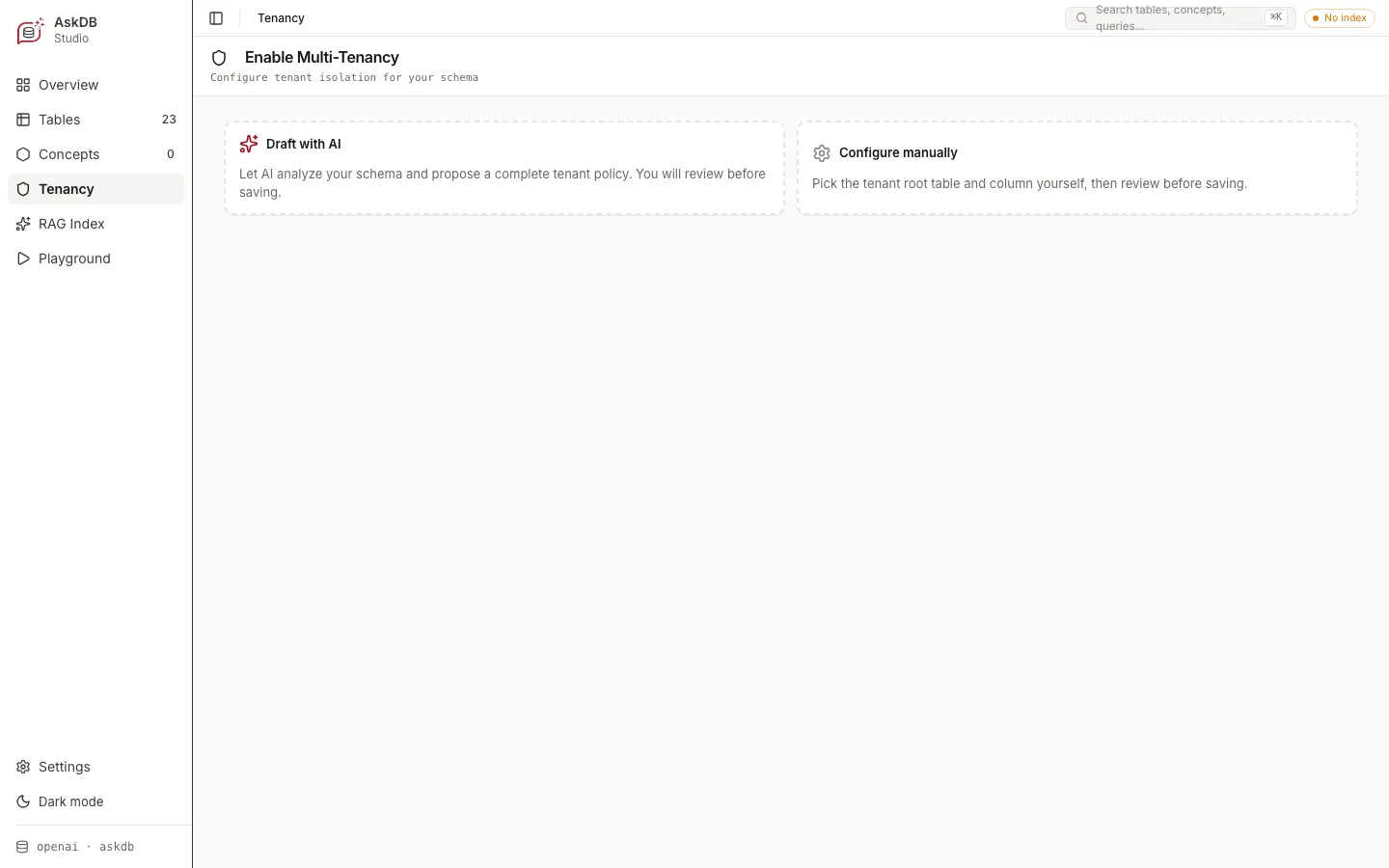
The Tenancy view is where you declare tenant isolation for multi-tenant schemas. Choose Draft with AI to let Studio analyse your schema and propose a tenant policy for your review, or Configure manually to pick the tenant root table and column yourself. Once configured, the Playground enforces tenant scope on every generated query and lets you test with different tenant IDs. See Multi-tenancy for the full walkthrough.
Studio and your data
Section titled “Studio and your data”Studio binds to 127.0.0.1 by default — it is not reachable from outside your machine without an explicit host override. The model only ever sees schema text (table names, column names, descriptions, concepts): it never reads your actual rows. AI features — enrichment suggestions, tenant policy drafts, NL→SQL generation — are optional and only active when a model API key is configured in your environment.
Read next
Section titled “Read next”© 2026 Yahya Gilany